
How to Improve Home WiFi Speed: 15 Expert-Tested Methods That Actually Work How to improve home wifi speed is one of the most searched questions by homeowners struggling with slow internet connections. With remote work, streaming, and smart home devices becoming essential parts of our daily lives, a fast and reliable WiFi connection isn’t just convenient—it’s necessary. Whether you’re dealing with buffering videos, dropped video calls, or sluggish downloads, this comprehensive guide will walk you through proven methods to boost your home WiFi speed significantly. Understanding Your Current WiFi Speed Before diving into improvements, you need to establish a baseline. Your WiFi speed depends on several factors, including your internet plan, router capabilities, and environmental interference. Test Your Internet Speed Properly The most accurate way to measure your WiFi performance is through multiple speed tests: Use reputable speed test tools like Speedtest.net or Fast.com Test at different times throughout the day Test on multiple devices to identify device-specific issues Test both WiFi and ethernet connections to compare speeds According to the Federal Communications Commission (FCC), the average household needs at least 25 Mbps for streaming 4K content and handling multiple connected devices simultaneously. Quick Fixes That Deliver Immediate Results 1. Restart Your Router and Modem This simple step resolves many connectivity issues: Unplug both devices for 30 seconds Plug in the modem first, wait 2 minutes Connect the router, wait another 2 minutes Test your speed again ] 2. Optimize Router Placement Router positioning dramatically affects WiFi performance: Place it centrally in your home Elevate the router 3-6 feet off the ground Avoid obstacles like walls, metal objects, and appliances Keep it away from interference sources like microwaves and baby monitors 3. Update Router Firmware Outdated firmware can significantly slow your connection: Check manufacturer’s website for updates Enable automatic updates if available Most modern routers update automatically, but older models require manual updates Advanced WiFi Speed Optimization Techniques 4. Choose the Right WiFi Channel WiFi congestion from neighboring networks can severely impact your speed: For 2.4 GHz networks: Use channels 1, 6, or 11 – these don’t overlap Avoid auto-channel selection which often picks crowded channels For 5 GHz networks: More channels available with less congestion Use WiFi analyzer apps to find the least crowded channels 5. Switch to 5 GHz Band Most modern routers broadcast on both 2.4 GHz and 5 GHz frequencies: 5 GHz offers faster speeds but shorter range 2.4 GHz provides longer range but slower speeds Use 5 GHz for close devices requiring high bandwidth Reserve 2.4 GHz for smart home devices and distant connections 6. Upgrade Your WiFi Standard WiFi standards directly impact maximum speeds: WiFi 6 (802.11ax): Up to 9.6 Gbps WiFi 5 (802.11ac): Up to 3.5 Gbps WiFi 4 (802.11n): Up to 600 Mbps If your router is over 3-4 years old, upgrading to WiFi 6 can dramatically improve performance, especially with multiple connected devices. Extending WiFi Coverage and Eliminating Dead Zones 7. Use WiFi Extenders or Mesh Systems For larger homes or persistent dead zones: WiFi Extenders: Cost-effective solution for small coverage gaps Easy to install but can reduce overall speed Best for single problem areas Mesh WiFi Systems: Seamless coverage throughout entire home Multiple access points work together Higher initial cost but superior performance Popular mesh systems include Eero, Netgear Orbi, and Google Nest WiFi. 8. Optimize Antenna Configuration If your router has external antennas: Position one vertically and one horizontally Angle antennas toward areas needing stronger signal Replace stock antennas with high-gain alternatives if possible Device and Usage Optimization 9. Manage Connected Devices Too many connected devices can overwhelm your network: Disconnect unused devices regularly Prioritize important devices using Quality of Service (QoS) settings Update device network drivers for optimal performance Use ethernet for stationary devices when possible 10. Control Bandwidth-Heavy Applications Streaming and downloads can monopolize your connection: Schedule large downloads during off-peak hours Adjust streaming quality to match your internet speed Use QoS settings to prioritize critical applications Consider upgrading your internet plan if consistently maxing out bandwidth Network Security and Performance 11. Secure Your Network Properly Unsecured networks invite unwanted users who steal bandwidth: Use WPA3 encryption (or WPA2 if WPA3 unavailable) Create strong passwords with mixed characters Regularly change passwords every 6-12 months Enable guest networks to isolate visitor traffic 12. Monitor Network Usage Understanding your usage patterns helps identify issues: Use router admin panels to view connected devices Install network monitoring apps like Fing or WiFi Analyzer Check for unauthorized access regularly Identify bandwidth-heavy devices and manage accordingly Hardware Upgrades That Make a Difference 13. Upgrade Your Internet Plan Sometimes the bottleneck is your internet service: Compare current usage with plan limits Consider symmetrical plans for better upload speeds Look into fiber options if available in your area Negotiate with providers for better rates on faster plans 14. Invest in a Quality Router Router quality significantly impacts performance: Look for WiFi 6 compatibility for future-proofing Choose routers with adequate processing power for your device count Consider gaming routers for demanding applications Ensure adequate RAM and storage for optimal firmware performance 15. Use Powerline Adapters for Difficult Areas Powerline networking uses existing electrical wiring: Ideal for areas where WiFi struggles to reach More reliable than WiFi extenders in some situations Easy installation with minimal setup required Speed depends on electrical wiring quality Troubleshooting Common WiFi Speed Issues Interference Sources to Avoid Common household items that interfere with WiFi signals: Microwave ovens (2.4 GHz interference) Baby monitors and cordless phones Bluetooth devices Metal objects and mirrors Thick walls and floors When to Contact Your ISP Contact your internet service provider if: Speed tests consistently show speeds well below your plan Multiple troubleshooting attempts haven’t helped Service outages occur frequently Technical support is needed for advanced configuration Measuring Your Success After implementing these improvements: Run speed tests from the same locations as your baseline Test at the same times of day for accurate comparisons Monitor performance over several days Document improvements to identify most effective changes Conclusion:

Best Internet Speed for Remote Work: Complete Guide for 2025
Best Internet Speed for Remote Work Working from home has become the new normal for millions of professionals worldwide. But nothing kills productivity faster than a slow internet connection that drops during important video calls or takes forever to upload files. If you’ve ever wondered, “What’s the best internet speed for remote work?” – you’re in the right place. Quick Answer: Minimum Internet Speed Requirements For most remote workers, 25-50 Mbps download and 10-25 Mbps upload speeds provide a reliable foundation. However, your specific needs depend on your work activities, household usage, and video conferencing requirements. Understanding Internet Speed Basics Before diving into specific recommendations, let’s clarify what internet speed actually means: Download Speed: How fast you can receive data (streaming videos, downloading files, loading web pages) Upload Speed: How fast you can send data (video calls, uploading files, sending large emails) Ping/Latency: Response time between your device and the server (crucial for real-time communication) Most internet service providers advertise download speeds prominently, but upload speed is equally important for remote work success. Internet Speed Requirements by Work Activity Basic Remote Work Tasks Email and web browsing: 1-5 Mbps download Cloud document editing (Google Docs, Office 365): 2-10 Mbps File syncing (Dropbox, OneDrive): 5-25 Mbps depending on file sizes Video Conferencing Requirements Video calls consume significant bandwidth and require stable connections: Zoom meetings: Standard quality: 1.5 Mbps up/down HD quality: 2.5 Mbps up/down Group HD calls: 4 Mbps up/down Microsoft Teams: 1.2-4 Mbps depending on quality Google Meet: 2.6 Mbps for HD video Skype: 1.5-8 Mbps for group HD calls Heavy Bandwidth Activities Large file uploads/downloads: 50+ Mbps recommended Software development (Git repositories, cloud deployments): 25-100 Mbps Graphic design/video editing: 100+ Mbps for cloud rendering Multiple simultaneous activities: Add 25-50% buffer to total requirements Recommended Internet Speeds by Remote Work Type Light Remote Work (25-50 Mbps) Perfect for professionals who primarily: Attend occasional video meetings Work with cloud documents Send standard emails Browse the web for research Standard Remote Work (50-100 Mbps) Ideal for workers who regularly: Participate in daily video conferences Share screens frequently Upload medium-sized files Use multiple cloud applications simultaneously Heavy Remote Work (100+ Mbps) Essential for professionals who: Host webinars or large meetings Transfer large files daily Work with video/audio content Run bandwidth-intensive software Factors That Affect Your Internet Speed Needs Multiple Users and Devices Every connected device consumes bandwidth. Consider: Each family member’s usage: Streaming, gaming, social media Smart home devices: Security cameras, smart TVs, IoT devices Background applications: Automatic updates, cloud backups Rule of thumb: Add 25 Mbps for each additional heavy internet user in your household. Peak Usage Times Internet speeds often slow during peak hours (7-10 PM) when neighborhood usage is highest. If you work evening hours, you may need higher speeds to maintain performance. Connection Reliability Consistent speed matters more than peak speed. A stable 50 Mbps connection outperforms an inconsistent 100 Mbps connection that frequently drops or slows. Upload Speed: The Often-Overlooked Essential Many remote workers focus solely on download speeds, but upload speed is crucial for: Video conferencing quality: Your video stream to other participants File sharing: Sending presentations, documents, or media files Cloud backups: Automatic syncing of work files Screen sharing: Real-time desktop sharing during meetings Recommended upload speeds: Basic needs: 5-10 Mbps Regular video calls: 10-25 Mbps Content creation/large files: 25+ Mbps Types of Internet Connections for Remote Work Fiber Internet (Best Choice) Speeds: Up to 1,000+ Mbps symmetrical Reliability: Excellent, less affected by weather Latency: Lowest (1-5ms) Best for: All remote work scenarios Cable Internet Speeds: 25-500 Mbps download, 5-50 Mbps upload Reliability: Good, can slow during peak times Latency: Moderate (10-30ms) Best for: Standard to heavy remote work DSL Internet Speeds: 1-100 Mbps, varies by distance from provider Reliability: Stable but limited speed Latency: Moderate to high (20-50ms) Best for: Light remote work only Satellite Internet Speeds: 12-150 Mbps (newer services like Starlink offer higher speeds) Reliability: Weather-dependent Latency: High traditional (500-700ms), lower for LEO satellites (20-40ms) Best for: Rural areas with limited options How to Test and Optimize Your Internet Speed Testing Your Current Speed Use these reliable speed test tools: Speedtest.net Fast.com (Netflix’s speed test) Google Speed Test Your ISP’s speed test tool Best practices for accurate testing: Test multiple times throughout the day Close other applications and pause downloads Test on both Wi-Fi and ethernet Use different devices for comparison Optimizing Your Connection Use Ethernet: Wired connections are faster and more stable than Wi-Fi Upgrade your router: Older routers can bottleneck your connection Position router centrally: Minimize physical barriers Update router firmware: Ensures optimal performance Consider mesh systems: For larger homes with Wi-Fi dead zones When to Upgrade Your Internet Plan Consider upgrading if you experience: Frequent video call drops or poor quality Slow file uploads taking over 5 minutes Multiple people competing for bandwidth Buffering during important presentations Consistent speeds below 80% of advertised rates Cost vs. Performance: Finding the Sweet Spot While gigabit speeds sound appealing, most remote workers don’t need them. Consider: 50-100 Mbps plans offer the best value for standard remote work Gigabit plans are worthwhile if you regularly transfer large files or have multiple heavy users Business plans may offer better support and service level agreements Future-Proofing Your Remote Work Setup As remote work evolves, bandwidth requirements will likely increase: 4K video conferencing is becoming more common Virtual and augmented reality meetings are emerging Cloud-based everything continues to grow AI tools increasingly require cloud processing Choosing a plan with room to grow ensures your connection won’t become a bottleneck. Troubleshooting Common Remote Work Internet Issues Inconsistent Video Call Quality Check upload speed specifically Close bandwidth-heavy applications Switch from Wi-Fi to ethernet Adjust video call quality settings Slow File Uploads Verify upload speed meets requirements Use direct ethernet connection Upload during off-peak hours Consider business internet plans with higher upload speeds Frequent Disconnections Check for loose cable connections Update network drivers Contact ISP about line quality issues Consider backup internet solution (mobile hotspot) Backup Internet Solutions Smart

Cell Phone Plans: 7 Ultimate Options for Affordable Connectivity in 2025
Cell Phone Plans: Finding the Best Fit for Your Needs Cell phone plans are the backbone of staying connected in today’s fast-paced world. Whether you’re streaming videos, working remotely, or keeping in touch with loved ones, choosing the right plan can save you money and ensure reliable service. With so many options available, it’s crucial to understand what makes a plan stand out. This guide explores the top cell phone plans for 2025, helping you make an informed decision. Why Choosing the Right Cell Phone Plan Matters The right cell phone plan can make a significant difference in your monthly budget and connectivity experience. A well-suited plan offers the perfect balance of data, talk, and text without breaking the bank. With carriers constantly updating their offerings, 2025 brings exciting new options tailored to various needs. From unlimited data plans to budget-friendly prepaid options, there’s something for everyone. However, not all plans are created equal. Some prioritize high-speed data, while others focus on affordability or international coverage. Let’s dive into what you should consider when selecting cell phone plans. Key Factors to Consider in Cell Phone Plans When evaluating cell phone plans, several factors can help you narrow down your choices: Data Allowance: How much data do you need? Light users may be fine with 5GB, while heavy streamers might need unlimited data. Network Coverage: Ensure the carrier provides reliable service in your area. Cost: Compare monthly fees, including hidden costs like taxes or device payments. Contract Terms: Decide between prepaid, postpaid, or no-contract plans. Additional Perks: Look for extras like free streaming subscriptions or international roaming. By focusing on these factors, you can find cell phone plans that align with your lifestyle and budget. Top 7 Cell Phone Plans for 2025 Here’s a breakdown of seven outstanding cell phone plans that cater to different needs in 2025: 1. Best Unlimited Plan: Verizon Unlimited Welcome Verizon’s Unlimited Welcome plan offers robust 5G coverage and unlimited talk, text, and data. Ideal for heavy users, it includes access to Verizon’s ultra-fast Ultra Wideband network. While it lacks some premium perks, it’s a solid choice for reliable connectivity. 2. Best Budget Plan: Mint Mobile 5GB Plan Mint Mobile’s 5GB plan is perfect for light users who want affordability. Starting at just $15/month, this prepaid plan offers 5GB of high-speed data, unlimited talk, and text. It’s a fantastic option for budget-conscious consumers. 3. Best Family Plan: T-Mobile Magenta T-Mobile’s Magenta plan is great for families, offering multi-line discounts and perks like Netflix Standard included. With unlimited data and strong 5G coverage, it’s a versatile choice for households with multiple users. 4. Best Prepaid Plan: Visible Wireless Visible’s $25/month unlimited plan is a standout for prepaid users. Owned by Verizon, it provides access to their 5G network without a contract. It’s simple, affordable, and perfect for those who want flexibility. 5. Best for International Travel: AT&T International Day Pass For frequent travelers, AT&T’s International Day Pass offers daily international roaming for $10/day. Paired with their Unlimited Premium plan, it’s ideal for those needing cell phone plans with global coverage. 6. Best for Seniors: Consumer Cellular Unlimited Talk & Text Consumer Cellular caters to seniors with affordable plans starting at $20/month. Their unlimited talk and text plan, paired with flexible data options, is perfect for older adults who want simplicity. 7. Best for Students: US Mobile Unlimited Flex US Mobile’s Unlimited Flex plan offers customizable data options and access to multiple networks (Verizon or T-Mobile). Starting at $17.50/month, it’s a great pick for students seeking affordable cell phone plans. How to Compare Cell Phone Plans Effectively Comparing cell phone plans can feel overwhelming, but breaking it down into steps simplifies the process: Assess Your Usage: Track your data, talk, and text habits for a month to understand your needs. Check Coverage Maps: Use carrier websites to confirm network reliability in your area. Read the Fine Print: Look for hidden fees, throttling policies, or contract requirements. Consider Bundles: Some plans offer discounts when paired with home internet or streaming services. Test Prepaid Options: Try a prepaid plan before committing to a long-term contract. By following these steps, you can confidently choose a plan that fits your needs and budget. The Benefits of Prepaid Cell Phone Plans Prepaid cell phone plans are gaining popularity for their flexibility and affordability. Unlike traditional contracts, prepaid plans require no long-term commitment, making them ideal for those who want to avoid credit checks or locked-in terms. Providers like Mint Mobile, Visible, and Cricket Wireless offer competitive prepaid options. These plans often include generous data allowances and access to 5G networks at a fraction of the cost of postpaid plans. For example, Visible’s $25/month plan provides unlimited data on Verizon’s network, a deal hard to beat. Are Unlimited Cell Phone Plans Worth It? Unlimited cell phone plans sound appealing, but they’re not always the best choice. If you use less than 10GB of data monthly, a limited-data plan might save you money. However, for heavy users who stream, game, or work on the go, unlimited plans provide peace of mind. Carriers like Verizon, T-Mobile, and AT&T offer tiered unlimited plans with varying perks. For instance, T-Mobile’s Magenta Max includes premium data and free Netflix, while Verizon’s Unlimited Ultimate adds international roaming. Evaluate your usage to decide if unlimited is worth the cost. Tips for Saving Money on Cell Phone Plans Saving on cell phone plans doesn’t mean sacrificing quality. Here are some practical tips: Switch to Prepaid: Prepaid plans often cost less than postpaid contracts. Bundle Lines: Family or multi-line plans reduce the per-line cost. Look for Promotions: Carriers frequently offer deals for new customers or device upgrades. Bring Your Own Device: Avoid device payment plans by using an unlocked phone. Monitor Usage: Adjust your plan based on actual data consumption to avoid overpaying. By applying these strategies, you can enjoy reliable service without overspending. The Future of Cell Phone Plans in 2025 As 5G technology expands, cell phone plans are evolving to
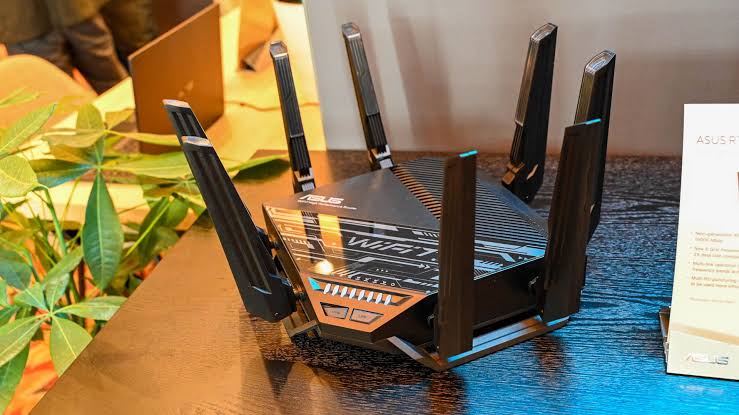
5 Best WiFi 7 Routers – Top Picks for Blazing-Fast Speeds in 2025
Introduction The latest WiFi 7 routers are revolutionizing home and office networks with unprecedented speeds, lower latency, and better efficiency. If you’re looking to future-proof your internet setupinternet setup, choosing one of the 5 best WiFi 7 routers is a smart move. In this guide, we’ll break down the top-performing models, their key features, and what makes them stand out. Whether you’re a gamer, streamer, or remote worker, these routers will supercharge your connectivity. Why Upgrade to a WiFi 7 Router? WiFi 7 (802.11be) is the newest wireless standard, offering: – Multi-Gigabit speeds (up to 46 Gbps) – Lower latency for gaming and video calls – Better efficiency in crowded networks – Improved range and stability If you want the best performance, investing in one of the 5 best WiFi 7 routers is a game-changer. 1. TP-Link Archer BE800 – Best Overall WiFi 7 Router Key Features: – Tri-band speeds up to 19 Gbps – 8 high-gain antennas for extended coverage – 2x 10G ports + 4x 2.5G ports for wired connections – AI-driven optimization for seamless performance Why It’s Great: The Archer BE800 delivers top-tier speeds and futuristic design, making it one of the best WiFi 7 routers for power users. 2. ASUS RT-BE96U – Best for Gamers Key Features: – Dual 10G ports + 4x 2.5G ports – ASUS RangeBoost+ for better coverage – Gaming-optimized QoS – Aura RGB lighting Why It’s Great: With ultra-low latency and gaming-centric features, the RT-BE96U is perfect for competitive gamers. 3. Netgear Nighthawk RS700 – Best for Large Homes Key Features: – 10G WAN/LAN port – Tri-band WiFi 7 support – Advanced security with Netgear Armor – Easy setup via app Why It’s Great: The RS700 ensures strong, consistent coverage across large spaces, making it a top pick among the best WiFi 7 routers. 4. Linksys Hydra Pro 7 – Best for Multi-Device Homes Key Features: – 12-stream tri-band connectivity – Smart Mesh compatibility – Easy parental controls – Sleek, compact design Why It’s Great: If you have multiple smart devices, the Hydra Pro 7 keeps everything running smoothly. 5. TP-Link Deco BE85 – Best Mesh WiFi 7 System Key Features: – Whole-home mesh coverage – Two 10G ports per unit – AI-powered network optimization – Easy scalability Why It’s Great: For seamless WiFi across every corner of your home, the Deco BE85 is unbeatable. How to Choose the Best WiFi 7 Router When picking from the 5 best WiFi 7 routers consider: ✅ Speed requirements (Gaming? 8K streaming?) ✅ Coverage area (Small apartment or large home?) ✅ Ports & connectivity options (Do you need 10G Ethernet?) ✅ Budget (Premium vs. mid-range options) Final Verdict Upgrading to one of the 5 best WiFi 7 routers ensures you get the fastest, most reliable connection available today. Our top pick, the TP-Link Archer BE800, offers the best balance of speed, range, and features. Ready to experience next-gen WiFi? Choose the right router from our list and enjoy lag-free browsing, gaming, and streaming. FAQ Q1: Is WiFi 7 worth it in 2024? A: Absolutely! If you need ultra-fast speeds and future-proofing, WiFi 7 is the way to go. Q2: Do I need new devices for WiFi 7? A: To enjoy full benefits, yes. But WiFi 7 routers are backward compatible. Q: Which is the fastest WiFi 7 router? A: The ASUS RT-BE96U and TP-Link Archer BE800 are among the fastest. Roundup: 5 Best WiFi 7 Routers for Lightning-Fast Speeds in 2025 1. TP-Link Archer BE800 – The best overall WiFi 7 router delivers 19 Gbps speeds, 8 high-gain antennas, and AI-powered optimization for unbeatable performance. 2. ASUS RT-BE96U – Built for gamers, this beast offers dual 10G ports, ultra-low latency, and RGB lighting for a killer setup. 3. Netgear Nighthawk RS700 – Perfect for large homes, it boasts a 10G port, tri-band WiFi 7, and advanced security with Netgear Armor. 4. Linksys Hydra Pro 7 – A powerhouse for smart homes, featuring 12-stream tri-band WiFi, easy parental controls, and mesh compatibility. 5. TP-Link Deco BE85 – The best mesh system blankets your home in WiFi 7 with 10G ports, AI optimization, and seamless scalability. By choosing one of these 5 best WiFi 7 routers, you’ll stay ahead in speed, performance, and connectivity. Upgrade today.

10 Proven Ways on How to Make Your Internet Faster on PC (Easy Fixes!)
Struggling with slow internet? Learn how to make your internet faster on PC with these 10 simple yet effective tips for a smoother browsing experience. How to Make Your Internet Faster on PC A slow internet connection can be frustrating, especially when you need to work, stream, or game without interruptions. If you’re wondering how to make your internet faster on PC, you’re in the right place. This guide covers 10 proven methods to boost your internet speed and improve performance. 1. Restart Your Router and PC (How to Make Your Internet Faster on PC) A simple restart can fix many connectivity issues. Unplug your router, wait 30 seconds, then plug it back in. Restart your PC to refresh network settings. 2.. Use a Wired Connection (Ethernet) Wi-Fi can be slower due to interference. For the fastest speeds, connect your PC directly to the router using an Ethernet cable. 3. Close Bandwidth-Hogging Applications Some apps (like streaming services or cloud backups) consume a lot of bandwidth. Check Task Manager (Ctrl+Shift+Esc) and close unnecessary programs. 4. Update Your Network Drivers Outdated drivers can slow down your connection. To update them: – Press Win + X > Device Manager. – Expand Network Adapters, right-click your adapter, and select Update Driver. 5. Optimize Your Browser for Speed Browsers with too many extensions can slow down your internet. Try these fixes: – Clear cache and cookies. – Disable or remove unused extensions. – Use a lightweight browser like Firefox or Chrome in incognito mode. 6. Change Your DNS Server Your default DNS may be slow. Switching to a faster DNS like Google DNS (8.8.8.8, 8.8.4.4) or Cloudflare (1.1.1.1) can improve speed. How to Change DNS on Windows: 1. Open Control Panel > Network and Sharing Center. 2. Click **Change adapter settings, right-click your connection, and select Properties**. 3. Choose IPv4 > Use the following DNS server addresses and enter preferred DNS. 7. Disable Background Apps and Updates Windows and other apps often run updates in the background, slowing your internet. To stop them: – Go to Settings > Windows Update > Pause updates. – In Settings > Apps > Startup, disable unnecessary apps. 8. Adjust Windows Network Settings Windows reserves some bandwidth for updates. To free it up: 1. Press Win + R, type `gpedit.msc`, and hit Enter. 2. Navigate to Computer Configuration > Administrative Templates > Network > QoS Packet Scheduler. 3. Enable Limit reservable bandwidth and set it to 0%. 9. Scan for Malware and Viruses Malware can slow down your internet. Run a scan using Windows Defender or a trusted antivirus program. 10. Upgrade Your Internet Plan or Hardware If your internet is still slow, consider: – Upgrading to a higher-speed plan. – Replacing an old router with a modern Wi-Fi 6 model. – Using a powerline adapter for better wired connections. Final Thoughts Knowing how to make your internet faster on PC can save you from endless buffering and lag. By following these steps—resetting your router, optimizing settings, and upgrading hardware—you can enjoy a smoother, faster browsing experience. Need more help? Check your internet speed at Speedtest.net to see if these fixes worked!

7 Powerful Cloud Investments Strategies to Dominate Your Industry in 2024
Discover 7 proven ways to maximize cloud investments for competitive advantage. Learn Deloitte’s framework for ROI, AI integration, and cost control Cloud Investments for Competitive Advantage We all know that the cloud powers modern businesses, and investments in artificial intelligence (AI), edge capabilities and digital innovation are only fueling greater cloud consumption. The future of cloud-enabled generative AI (genAI) is almost limitless. However, given tight tech budgets and the need to control costs, leaders are starting to question what investments they need to make to support their digital strategies and how should they measure the ROI. If this story sounds familiar, it should: Seventy percent of global respondents in a Deloitte study agreed that digital transformation is the most important investment they can make to drive enterprise value. Yet, three-quarters don’t know what measures they should use to assess digital value. So, how should leaders be thinking about digital value more holistically while investing in cloud to drive greater industry advantage? The Cloud Investments Imperative: Why It’s Non-Negotiable Cloud adoption is no longer optional—it’s a competitive necessity. Businesses leveraging cloud infrastructure see 30% faster innovation cycles and 20% lower operational costs (Deloitte, 2023). Yet, many still struggle with measuring true ROI. The key? Aligning cloud spend with business outcomes, not just IT efficiency. 3 Critical Cloud Strategies for Industry Leadership To extract maximum value, leaders must focus on: ✅ AI & Automation – Embedding AI into cloud workflows boosts productivity by 40% (McKinsey). ✅ Edge Computing – Faster data processing unlocks real-time decision-making. ✅ Cost Governance – Without controls, 35% of cloud spend is wasted (Flexera). Measuring Cloud ROI: Beyond Cost Savings Financial metrics alone don’t capture cloud’s full impact. Track: 📊 Revenue growth from new digital products 📊 Customer experience improvements (e.g., reduced latency) 📊 Time-to-market for innovation initiatives The Generative AI Game-Changer GenAI running on cloud platforms can double developer productivity (Accenture) and personalize customer interactions at scale. But success requires: 🔹 Clean, integrated data 🔹 Ethical AI frameworks 🔹 Cross-functional collaboration Future-Proofing Your Cloud Strategy The next wave? Industry-specific cloud solutions (e.g., healthcare compliance clouds, manufacturing digital twins). Leaders who customize cloud platforms for their sector will outpace competitors.

Lithium-Ion Battery FAQs: 5 Must-Know Secrets for Safety & Longer Lifespan!
🔋Introduction Lithium-ion (Li-ion) batteries power everything from smartphones to electric cars, but many users have questions about their safety, longevity, and efficiency. In this guide, we answer the top 5 most common lithium-ion battery FAQs to help you maximize performance and avoid risks. Lithium-Ion Battery FAQs ❓ FAQ 1: Are Lithium-Ion Batteries Safe? ✅ Yes, but with precautions. Li-ion batteries are generally safe but can overheat, swell, or catch fire if damaged, overcharged, or exposed to extreme temperatures. Safety tips: Use only manufacturer-approved chargers. Avoid puncturing or crushing the battery. Store in a cool, dry place (ideally between **20°C–25°C / 68°F–77°F**). ❓ FAQ #2: How Long Do Lithium-Ion Batteries Last? 📅Typically 2–3 years (or 300–500 charge cycles). Capacity gradually degrades over time—after 500 full cycles, most Li-ion batteries retain ~80% of their original capacity. Extend lifespan by: Avoiding full 0%→100% charges (keep between 20%–80%). Reducing exposure to high heat (e.g., don’t leave phones in hot cars). ❓ FAQ #3: Can I Leave My Li-Ion Battery Plugged In Overnight? ⚠️ Not recommended long-term. Modern devices have overcharge protection, but keeping a battery at 100% for extended periods strains it. Best practice: Unplug once fully charged, or use a smart charger that stops at 80%. ❓ FAQ #4: Why Do Lithium-Ion Batteries Swell? 🎈 Caused by gas buildup from overheating or aging. Swelling indicates battery failure—stop using it immediately! Common causes: Physical damage (e.g., drops). Frequent deep discharges (draining to 0%). Poor-quality chargers. ❓ FAQ #5: How Should I Store Lithium-Ion Batteries? 📦 Store at ~50% charge in a cool, dry place. Never store fully charged or fully drained—both degrade the battery. For long-term storage, check and recharge to 50% every 6 months. 🚀 Final Tips for Optimal Performance: Lithium-Ion Battery FAQs ✔️ Use quality chargers from trusted brands. ✔️ Avoid extreme temperatures (hot or cold). ✔️ Replace batteries if they show swelling, overheating, or rapid discharge.

5 Powerful Ways AI for Data Centers is Revolutionizing Efficiency
AI for Data Centers: The Future of Intelligent Infrastructure AI for Data Centers is transforming how businesses manage, optimize, and secure their critical IT infrastructure. As data demands skyrocket, artificial intelligence provides smarter, faster, and more cost-effective solutions. In this guide, you’ll see five powerful ways AI for Data Centers is reshaping the industry—from energy efficiency to predictive maintenance. 1. Why AI for Data Centers is a Game-Changer AI is reshaping data centers with smarter automation, real-time optimization, and unmatched cost savings. By leveraging machine learning, AI for Data Centers eliminates inefficiencies, prevents downtime, and enhances security—making it a must-have for modern infrastructure. 2. Energy Efficiency & Cooling Optimization One of the biggest expenses for data centers is cooling. AI for Data Centers uses machine learning to: Predict temperature fluctuations Adjust cooling systems dynamically Reduce energy consumption by up to 40% Data centers consume massive amounts of energy, with cooling systems alone accounting for nearly 40% of total power usage. As demand for computing power grows, traditional cooling methods are no longer sustainable. This is where AI for Data Centers steps in—transforming energy management through intelligent automation, predictive analytical for Data Centers The Problem with Traditional Cooling Systems Most data centers rely on static cooling models, where HVAC systems run at fixed rates regardless of actual need. This leads to: Energy waste (overcooling or insufficient cooling) Higher operational costs (electricity bills skyrocket) Increased carbon footprint (data centers contribute to ~1% of global emissions) AI-driven solutions eliminate these inefficiencies by dynamically adjusting cooling based on real-time data. How AI Optimizes Cooling in Data Centers Predictive Temperature Management AI-powered thermal modeling uses: Sensor data (server temps, airflow, humidity) Weather forecasts (external temperature impacts). Workload predictions (anticipating server heat spikes) By analyzing these factors, AI adjusts cooling before hotspots form, reducing energy waste. Dynamic Cooling Adjustments Instead of running at full capacity, AI systems: Modulate fan speeds based on server load. Redirect airflow to hot zones only Leverage free cooling (using outside air when possible) Google’s DeepMind AI reduced cooling costs by 40% using these methods. Liquid Cooling & AI Integrat Advanced data centers now use liquid cooling combined with AI for even greater efficiency: AI-controlled pumps regulate coolant flow Predictive maintenance prevents leaks or failures Hot/cold aisle containment is optimized in real time AI-Driven Energy Savings & Sustainability Benefits Metric Without AI With AI Improvement Cooling Energy Use 40% of total power 20-25% of total power ~40% reduction PUE (Power Usage Effectiveness) 1.6 or higher 1.2-1.3 25% more efficient Carbon Emissions High Reduced by 30%+ Significantly greener (PUE measures how efficiently a data center uses energy; lower is better.) Real-World AI Cooling Success Stories Case Study 1: Google’s DeepMind AI Reduced cooling energy consumption by 40% Achieved a 15% drop in overall PUE Set a new industry standard for AI-driven efficiency Case Study 2: Microsoft’s Project Natick (Underwater Data Centers) Used AI + seawater cooling for natural heat dissipation Cut cooling costs to near zero Proved feasibility of sustainable data centers The Future of AI in Data Center Cooling Emerging trends include: Self-learning AI models that improve over time Edge data centers** with hyper-localized cooling Renewable energy integration (AI balancing solar/wind power usage) 3. Predictive Maintenance & R Unexpected hardware failures can cost millions. AI for Data Centers helps by: Monitoring equipment health in real time Predicting failures before they happen Scheduling maintenance proactively This minimizes downtime and extends hardware lifespan. The High Cost of Data Center Downtime Data center outages cost businesses an average of $9,000 per minute, with major incidents leading to millions in losses. Traditional reactive maintenance approaches are no longer sufficient in today’s 24/7 digital economy. This is where AI-powered predictive maintenance is revolutionizing data center operations by: Preventing 85% of unplanned outages Reducing maintenance costs by 25-30% -Extending equipment lifespan by 20-40% How AI Enables Predictive Maintenance in Data Centers Real-Time Equipment Monitoring AI systems continuously analyze data from: Vibration sensors (detecting abnormal motor movements) Thermal cameras (identifying overheating components) Power quality analyzers (spotting electrical irregularities) Acoustic sensors (catching unusual server noises) Machine learning models process this data to establish normal operational baselines and flag anomalies. Failure Prediction Algorithms Advanced AI models can predict failures days or weeks in advance by: Analyzing historical failure patterns Monitoring performance degradation trends Correlating multiple sensor readings For example, AI can predict: ✔ Hard drive failures with 95% accuracy ✔ UPS battery degradation with 90% precision ✔ Cooling system faults 72 hours before failure Smart Maintenance Scheduling AI-driven systems optimize maintenance workflows by: Prioritizing critical repairs Scheduling downtime during low-traffic periods Automatically ordering replacement parts This prevents the “maintenance overload” problem where too many systems are taken offline simultaneously. Case Studies: AI Preventing Costly Outages Case Study 1: Facebook’s Auto-Remediation System Reduced hardware-related incidents by 50% Cut outage durations by 75% Automatically resolves 60% of issues without human intervention Case Study 2: AWS’s Predictive Disk Failure System Predicts SSD failures with 94% accuracy Reduced data loss incidents by 80% Saves millions annually in prevented outages Implementing AI Predictive Maintenance: Key Steps Instrument your infrastructure (install IoT sensors everywhere) Choose the right AI platform (AWS, IBM, or custom solutions) Train models with historical data (minimum 6-12 months of logs) Start with pilot projects (focus on critical systems first) Continuously refine algorithms(incorporate new failure modes) 4. Enhanced Security & Threat Detection The Rising Tide of Data Center Cyber Threats Modern data centers face an alarming 2,200+ cyberattacks per day, with threats growing more sophisticated each year. Traditional security measures like firewalls and signature-based detection can no longer keep pace. AI-powered security systems now provide: Real-time anomaly detection (stopping 95% of zero-day attacks) Automated threat response (reacting 60x faster than humans) Predictive threat intelligence (anticipating attacks before they happen) How AI Transforms Data Center Security Behavioral Analysis & Anomaly Detection AI security systems continuously learn “normal” behavior patterns for: ✔ Network traffic flows ✔ User access patterns ✔ Application interactions When deviations occur, AI can: Flag suspicious lateral movements (potential breaches) -Detect

How to Get Blazing-Fast 19Gbps Internet: The Ultimate Guide
How to Get Blazing-Fast 19Gbps Internet Introduction Getting to know how to get blazing-fast 19Gbps internet is no longer a dream—it’s a reality for those who need ultra-fast speeds for gaming, 8K streaming, or enterprise-level tasks. But how can you achieve such incredible speeds? This guide covers everything you need to know. What is 19Gbps Internet? 19Gbps internet delivers a staggering 19,000 Mbps, making it one of the fastest connections available. To put it in perspective: Download a 100GB game in under a minute. Stream dozens of 8K videos simultaneously. Support hundreds of connected devices without lag. Only a few ISPs and technologies currently support this speed. How to Get 19Gbps Internet 1. Check Availability in Your Area Not all providers offer 19Gbps internet—some leading options include: Google Fiber (Experimental Tiers) AT&T Fiber (Business Plans) Local ISPs with Multi-Gig Fiber Use ISP lookup tools or contact providers directly. 2. Upgrade Your Hardware To handle 19Gbps internet, you’ll need: A 10Gbps+ capable router (e.g., ASUS ROG Rapture GT-AXE16000) Multi-Gig Ethernet ports (2.5G/5G/10G) Cat6a or Cat8 Ethernet cables A compatible modem (if required) 3. Optimize Your Network Setup Use wired connections for maximum speed. Avoid bottlenecks with high-end switches. Enable QoS (Quality of Service) for critical tasks. 4. Consider Business or Enterprise Plans Most 19Gbps internet plans are for businesses, check if: Your ISP offers custom enterprise solutions. You qualify for data center-level connections. Is 19Gbps Internet Worth It? Pros: ✔️ Zero latency for competitive gaming & VR. ✔️ Instant 4K/8K video editing & uploads. ✔️ Future-proof for *smart homes & IoT Cons: ❌ Extremely expensive (often $300+/month). ❌ Limited availability (mostly urban areas). ❌ Overkill for average users (1Gbps is enough for most). Final Thoughts: How to Get Blazing-Fast 19Gbps Internet) While 19Gbps internet is groundbreaking, it’s not for everyone. If you’re a power user, streamer, business needing extreme speeds, follow this guide to upgrade. For most people, 1-10Gbps is sufficient. FAQs Q1: Can I get 19Gbps internet at home?** A: Rarely—most plans are for businesses. Check with ISPs for custom solutions. Q2: What’s the cheapest way to get 19Gbps? A: Look for fiber-optic business bundles or local ISP promotions. Q3: Do I need special Wi-Fi for 19Gbps? A: Yes—Wi-Fi 6E or Wi-Fi 7 routers with 10Gbps+ ports are essential. Need Help? Leave a comment or contact your ISP to explore 19Gbps internet options! (How to Get Blazing-Fast 19Gbps Internet)